
 LiveFreeStays on your phone
Fatal Sweep
Sweep the junk out of your inbox and keep the real mail. Fatal Sweep connects to Gmail, Yahoo or Outlook, moves spam, scams and sales blasts to Trash, unsubscribes you when it can, and leaves anything it isn't sure about for you to decide.
Plus a breach heads-up for your email and a step-by-step guide for getting your number off people-search sites. Your passwords, PIN and rules stay on your phone.
A look inside
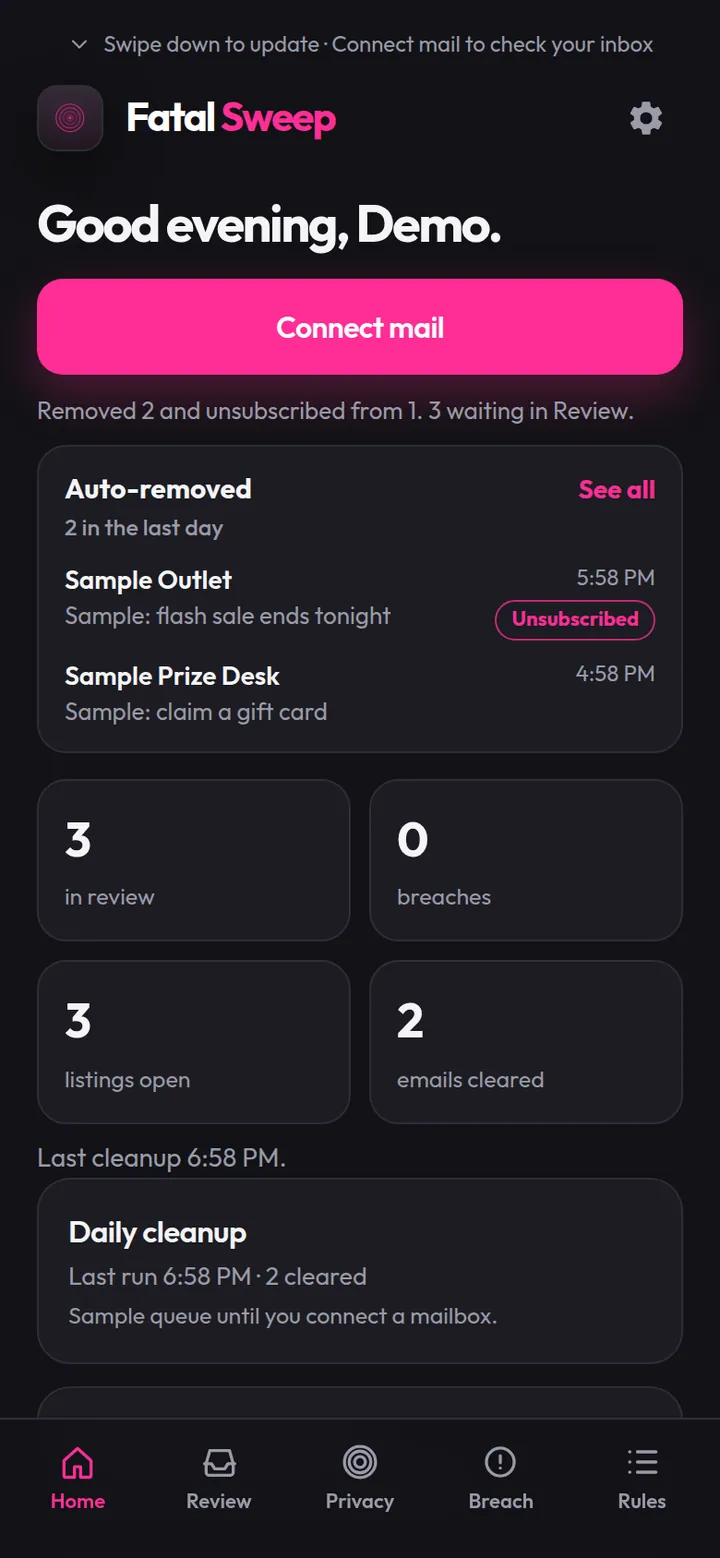
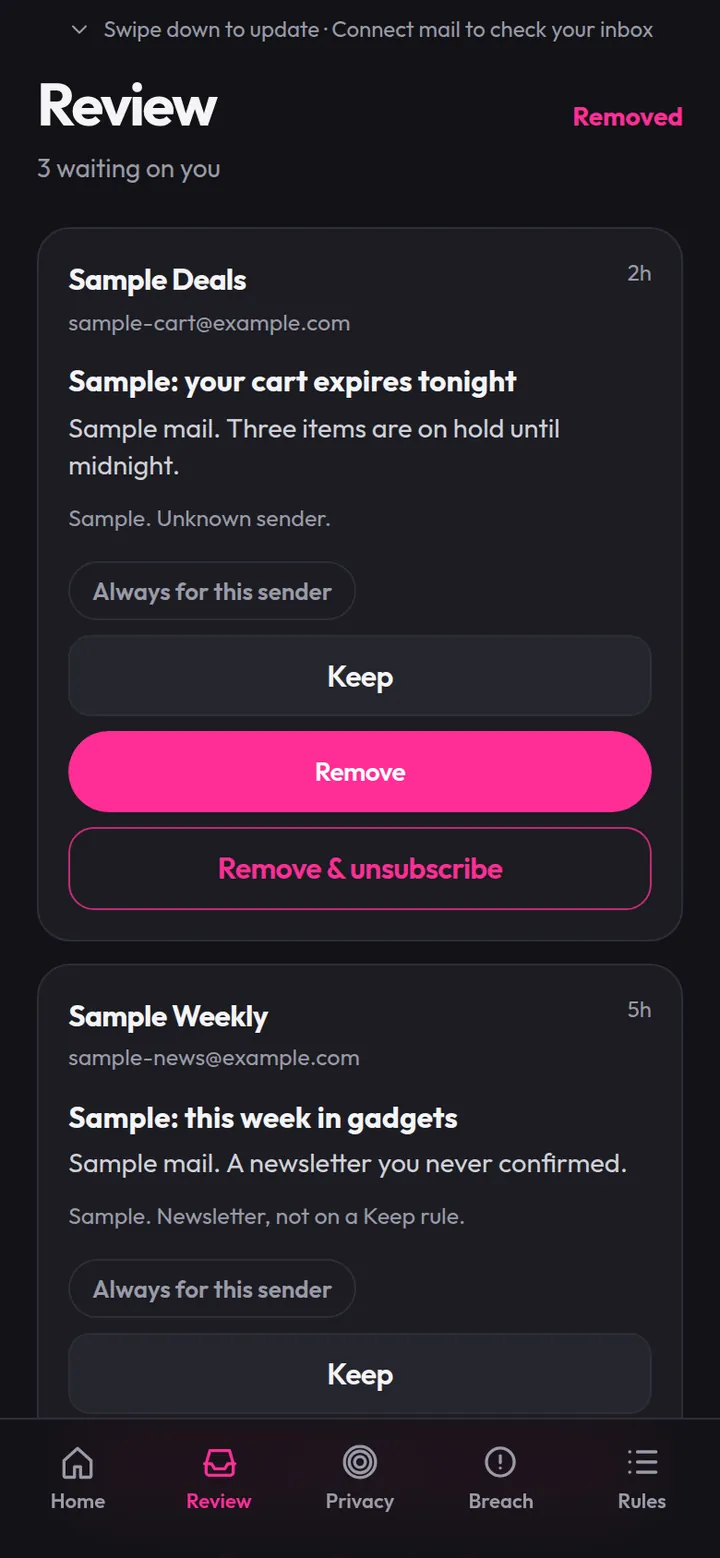
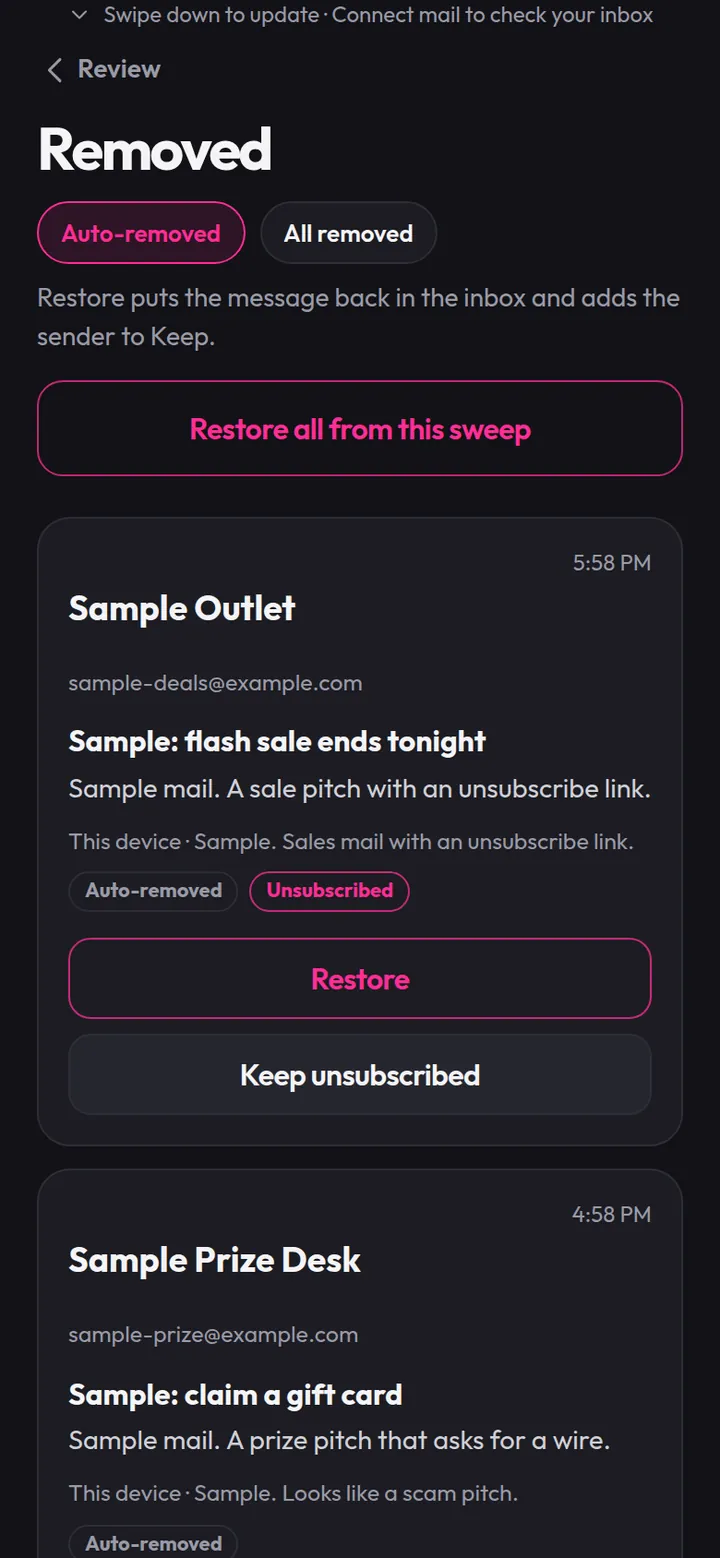
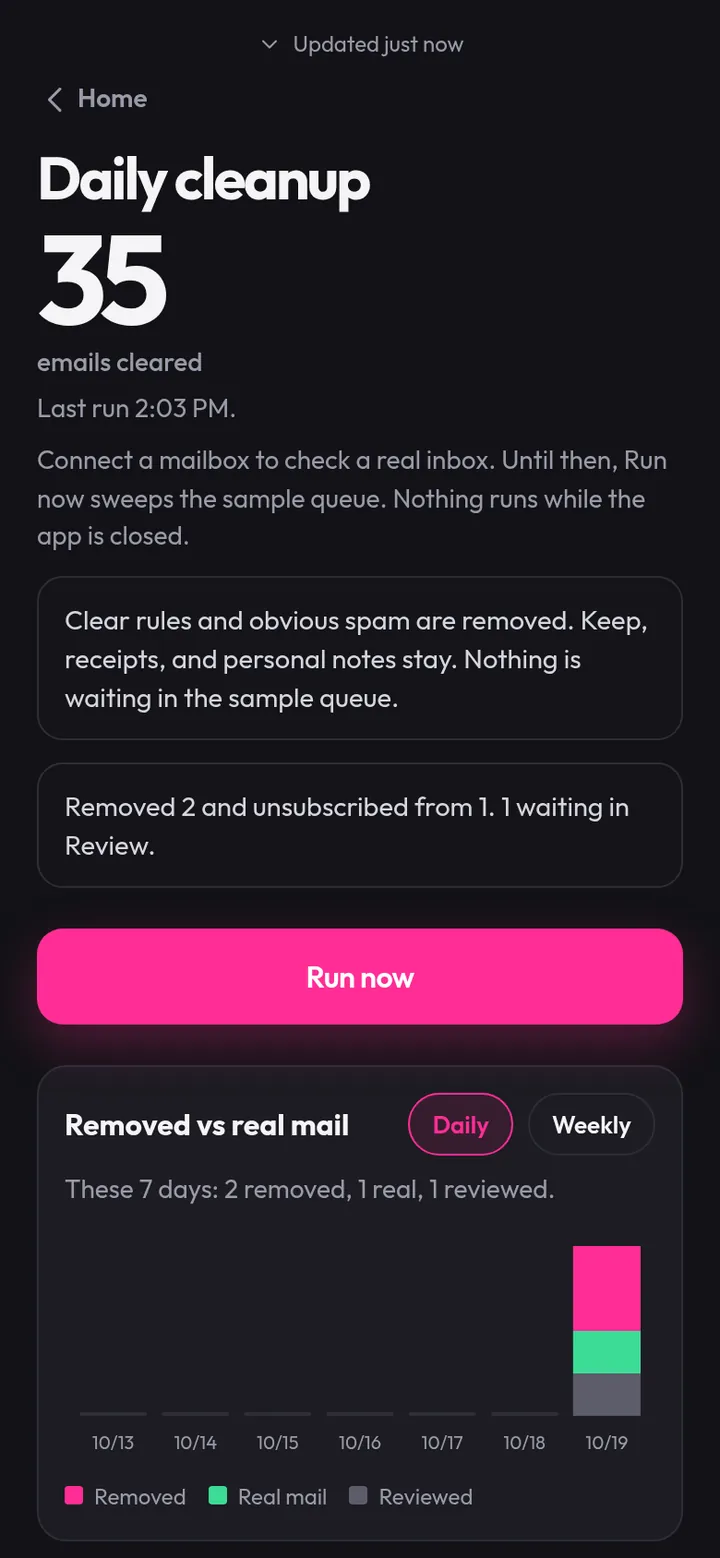
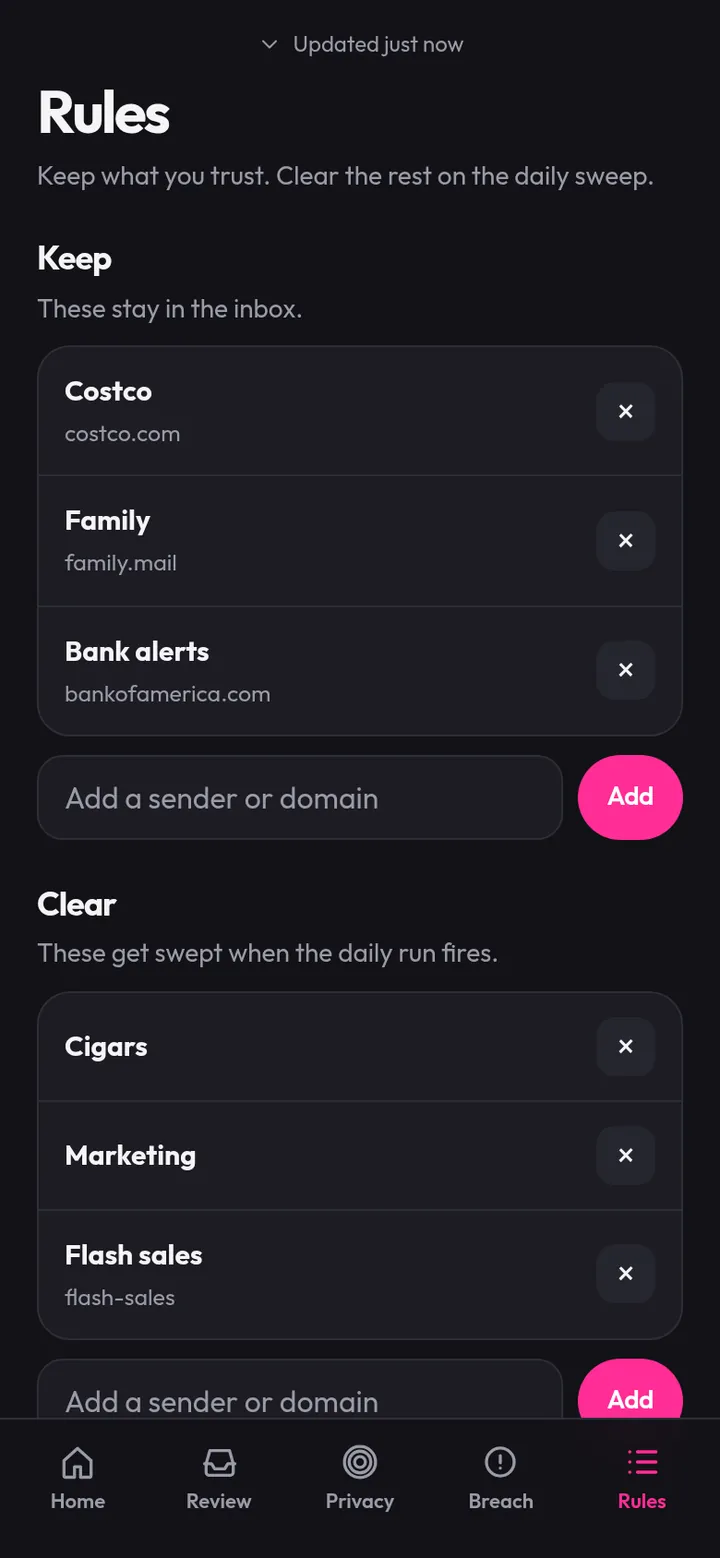
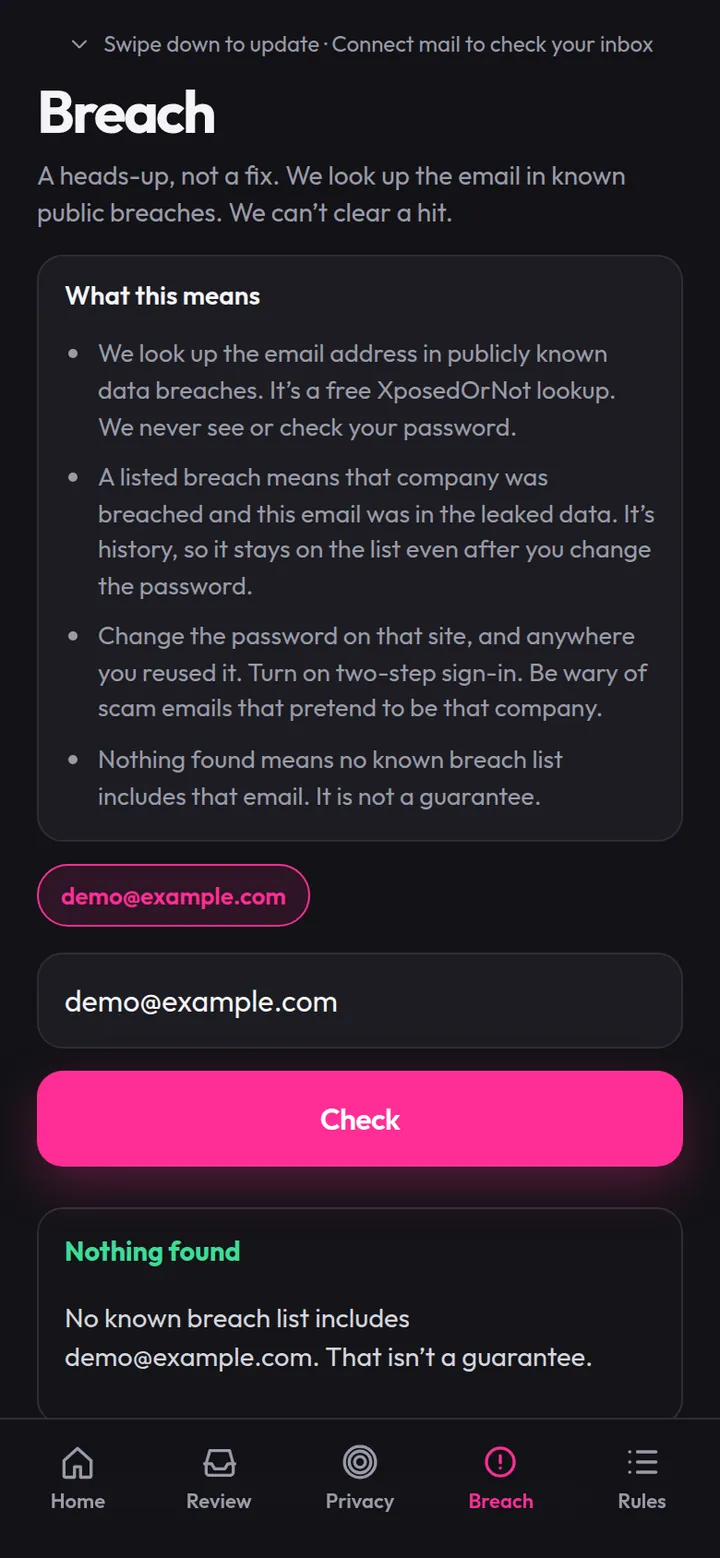
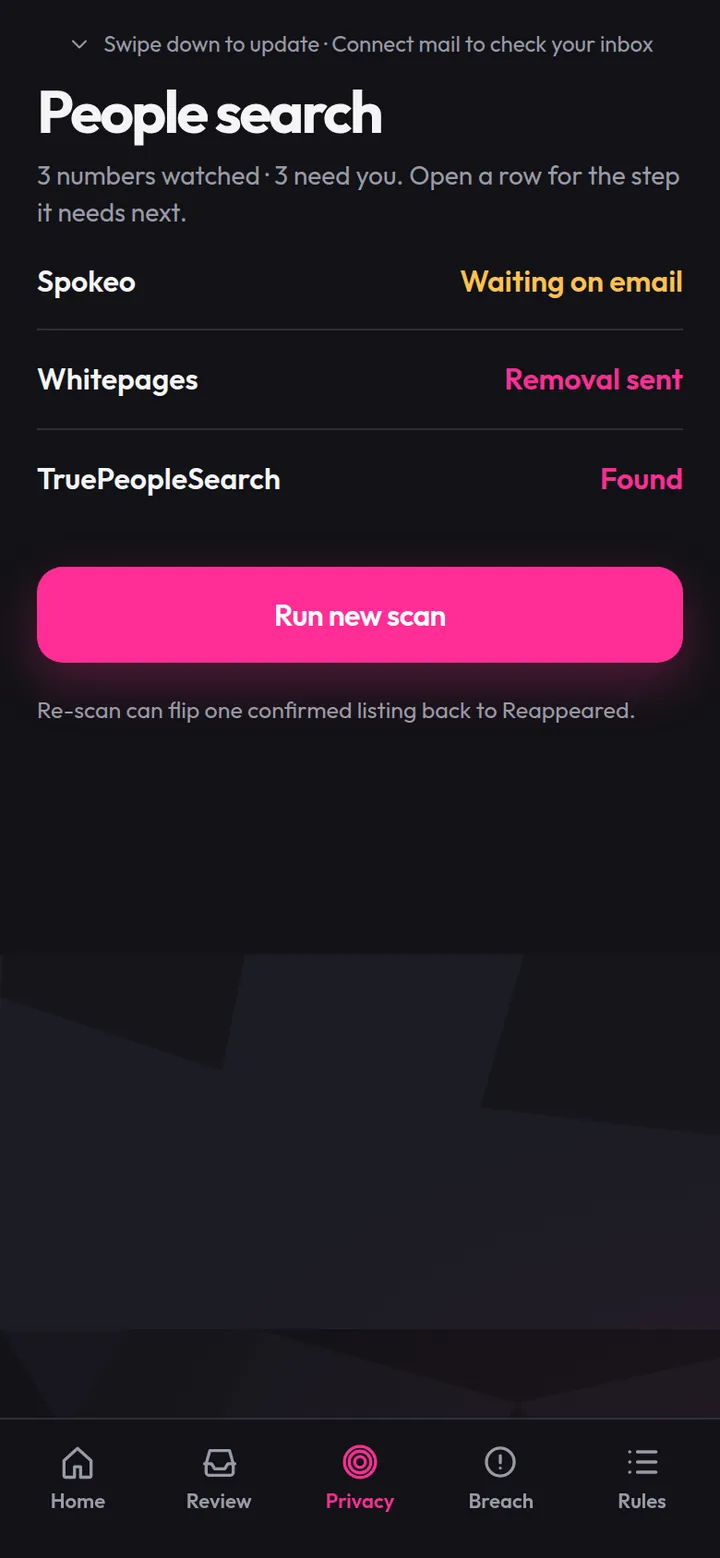
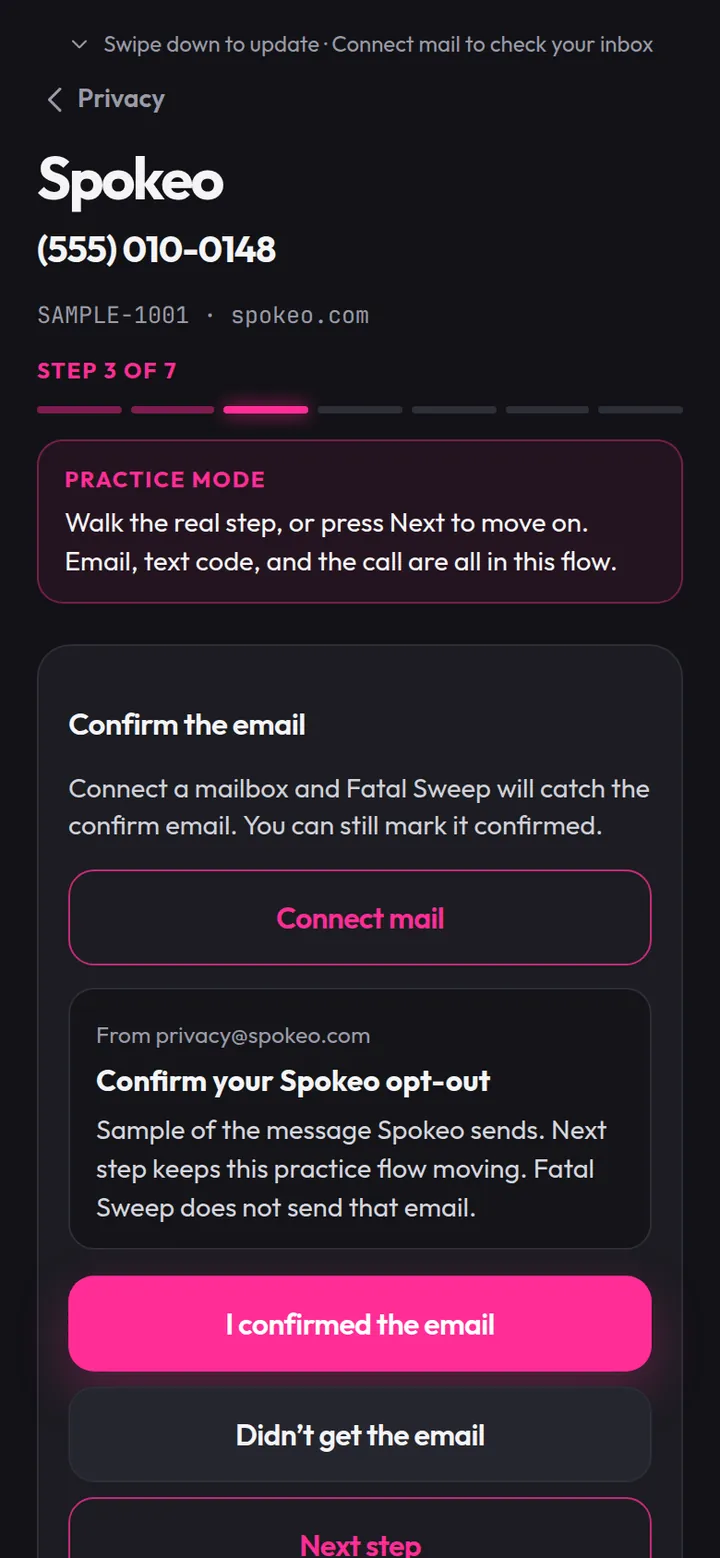
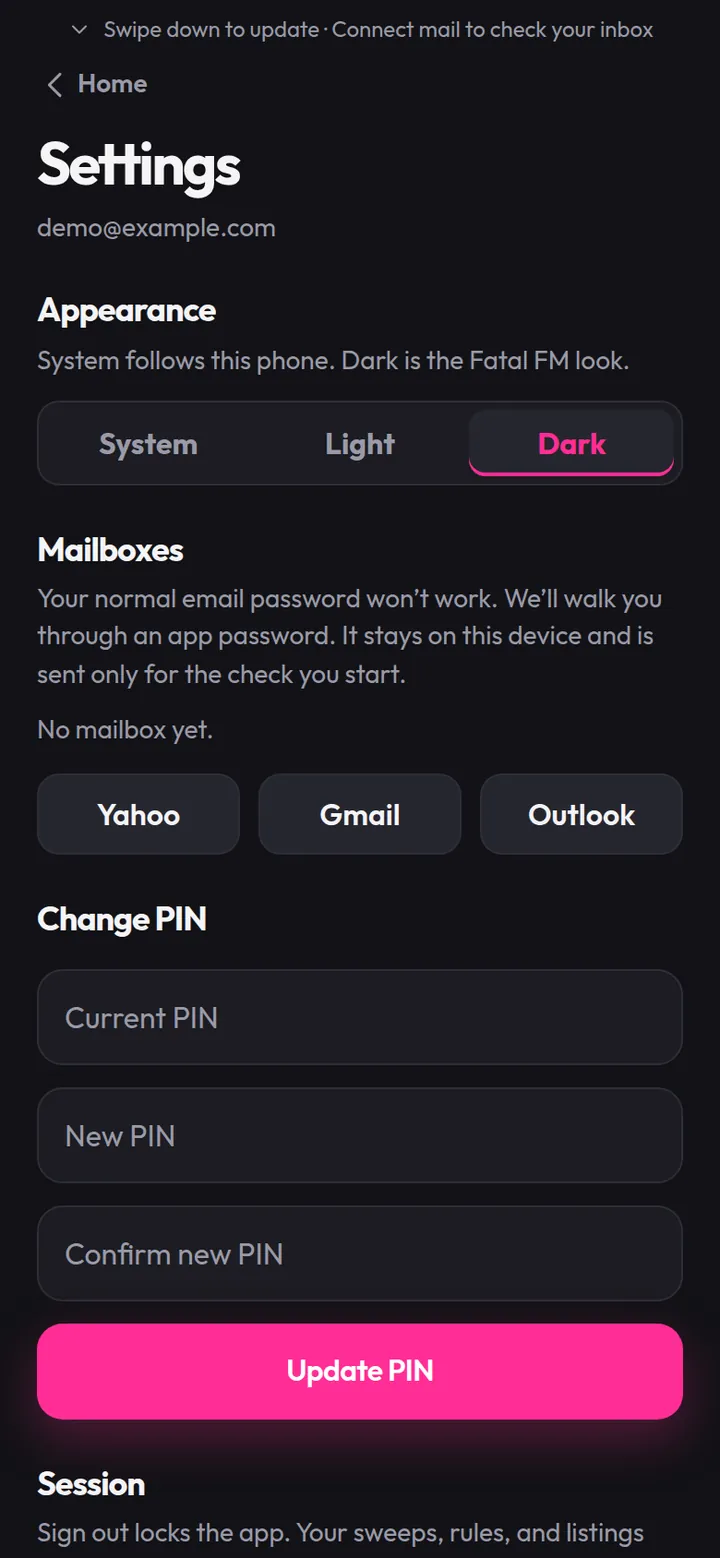
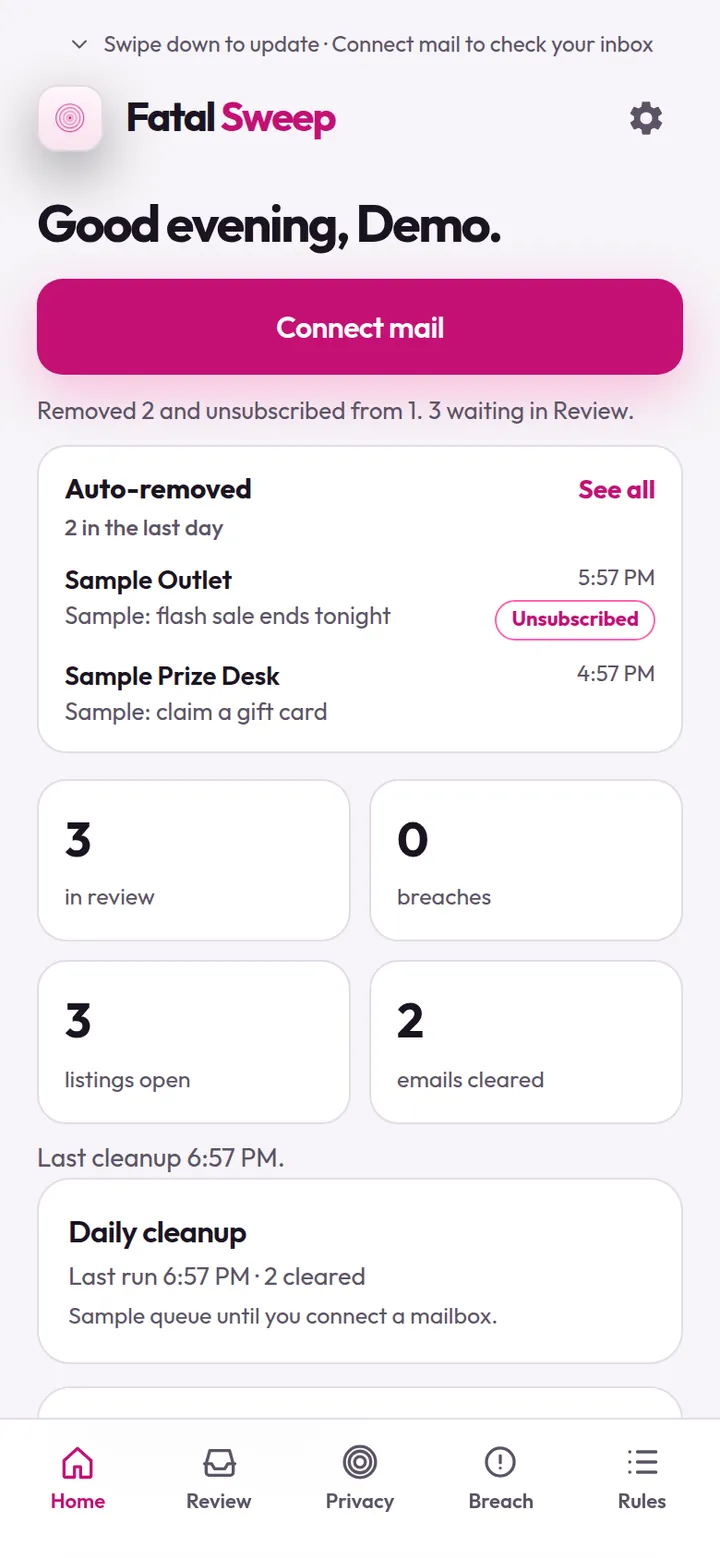
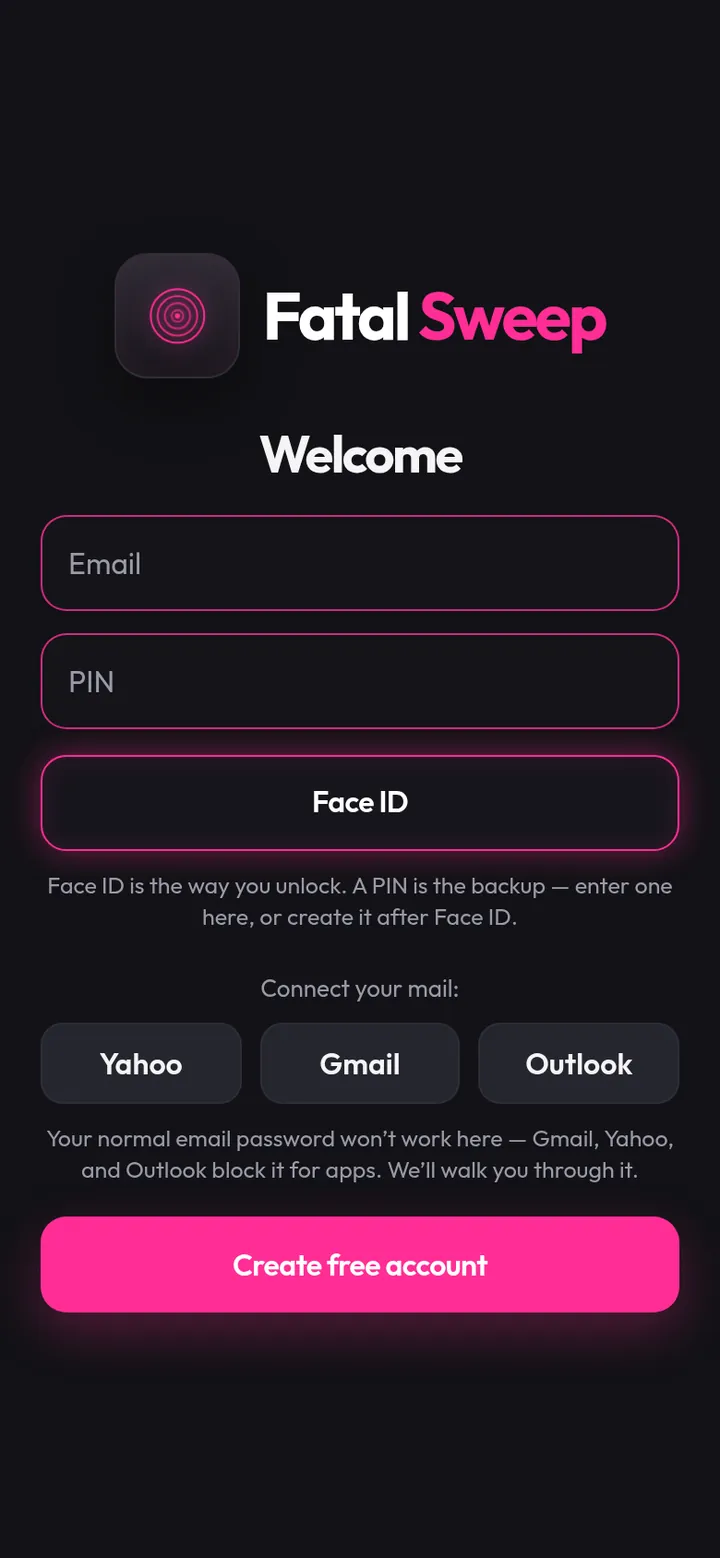
Screenshots show example data. Swipe sideways for more, tap one to see it big.
Some of the cool stuff
- 🧹 Real inbox cleanupWorks on your actual Gmail, Yahoo or Outlook inbox (over IMAP, with an app password). Not a demo.
- ⏱️ Sweeps when you open itOpening the app checks your mail, at most every 3 hours. Swipe down on Home or tap Run now any time.
- 🗑️ Junk to Trash, unsubscribedMail that matches your Clear rules, bulk or sales mail with an unsubscribe link, and scam pitches go to Trash, and it unsubscribes you when it can.
- 🛡️ Never touches the real stuffYour Keep senders, receipts, bank mail, sign-in codes, shipping updates and personal-looking mail are never auto-removed.
- 🤔 You decide the unsure onesAnything it isn't sure about waits in Review: Keep, Remove, or Remove & unsubscribe, with "Always for this sender".
- ↩️ Restore anythingThe Auto-removed list has Restore: the message goes back to your inbox and the sender is added to Keep.
- 📋 Keep and Clear rulesAdd a sender or a domain to always keep it, or to always sweep it.
- 📊 Removed vs real mailA daily or weekly chart of what got swept and what was real, from your own sweeps on that phone.
- 🔎 Breach heads-upA free XposedOrNot lookup of your email address in known public breaches. It never sees your password. Old breaches stay on the list even after you change your password: it's a heads-up, not a fix.
- 🕵️ People-search opt-out guideStep-by-step help getting your number off Spokeo, TruePeopleSearch, FastPeopleSearch and Whitepages: confirm the email, enter the text code, and a call script if they still won't remove it. With your mail connected it spots the site's confirm email and moves you to the next step. You send the opt-out, Fatal Sweep walks you through it and tracks it.
- 🔐 Locked to youA local account on your phone. Unlock with Face ID first, with a 6-digit PIN as the backup (forgot the PIN? reset it with Face ID).
- 📱 Stays on your phoneApp passwords, your PIN and your rules are saved on your phone only. The mail checker gets your app password just for the check you start, then drops it. Nothing is stored on a server.
- 🌗 System, Light or DarkPick a theme in Settings, or let it follow your phone.
- ♥ Free, no adsNo ads, doesn't sell your data. Donate if you like it, never required.
Fresh blood
New Build 16
- ⚙️ Settings gearTap the gear on Home to get to Settings: mailboxes, theme, PIN and updates.
- 🌗 ThemesSystem, Light or Dark. System follows your phone.
- 🔄 Check for updatesIn Settings, so you can grab the newest build any time.
Fatal Sweep: live since October 2026.
What's next
More on the way. Got an idea? Email me.
Connect your mail with an app password
This is the only tricky part, and it takes about 5 minutes. Pick your email below and follow the numbered steps. You can do it right on your phone.
Why won't my normal password work?
Gmail, Yahoo and Outlook block your regular password in outside apps, to protect you. Instead, they let you make an app password: a separate 16-letter code that only works for mail apps. It doesn't change your normal password, you don't have to remember it, and you can delete it any time to cut Fatal Sweep off.
It looks like this: abcd efgh ijkl mnop (Gmail shows it in four groups; spaces are fine).
Before you start
- Fatal Sweep is installed and you've made your account (install steps).
- You know your email password, because Google, Yahoo or Microsoft will ask you to sign in again.
- Your phone is nearby for a sign-in code.
- Use the web browser (Safari or Chrome) for the provider steps, not the Gmail, Yahoo Mail or Outlook app.
Gmail @gmail.com · about 5 minutes
You'll need
- 2-Step Verification turned on. Google hides App passwords until it's on (step 1).
- A personal Google account. Work or school accounts may have it turned off by the admin (see Troubleshooting).
Make the app password
- Open myaccount.google.com/signinoptions/two-step-verification and sign in. If it says 2-Step Verification is on, skip to step 3.
- Tap Turn on 2-Step Verification and follow Google's prompts (a text code to your phone is fine).
- Open myaccount.google.com/apppasswords (Google Account → Security → App passwords). Sign in again if asked.
- In App name, type Fatal Sweep and tap Create. (On older screens, choose Other (custom name) first, then type the name and tap Generate.)
- Google shows Generated app password: a 16-letter code in four groups. Copy it: on a phone, press and hold the code → Copy. Then tap Done. Google only shows it once; if you lose it, just make a new one.
- IMAP: nothing to do on personal Gmail. Google keeps IMAP always on (since January 2025). Only if your Gmail settings still show an IMAP option: on a computer, Gmail → Settings ⚙ → See all settings → Forwarding and POP/IMAP → Enable IMAP → Save Changes.
- Now paste it into Fatal Sweep: tap Gmail and paste the code in the field labeled App password.
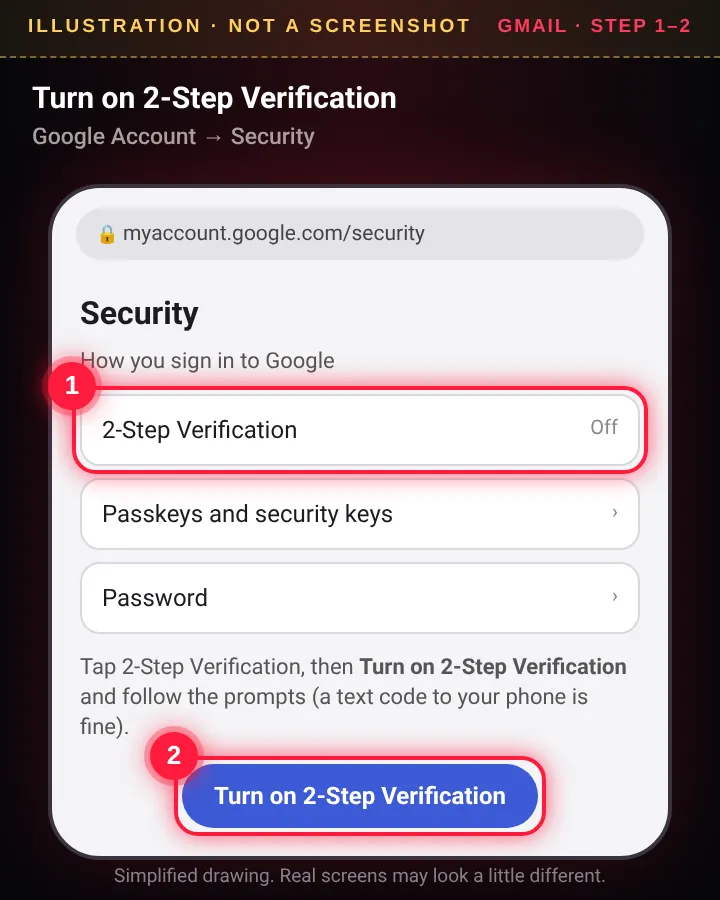
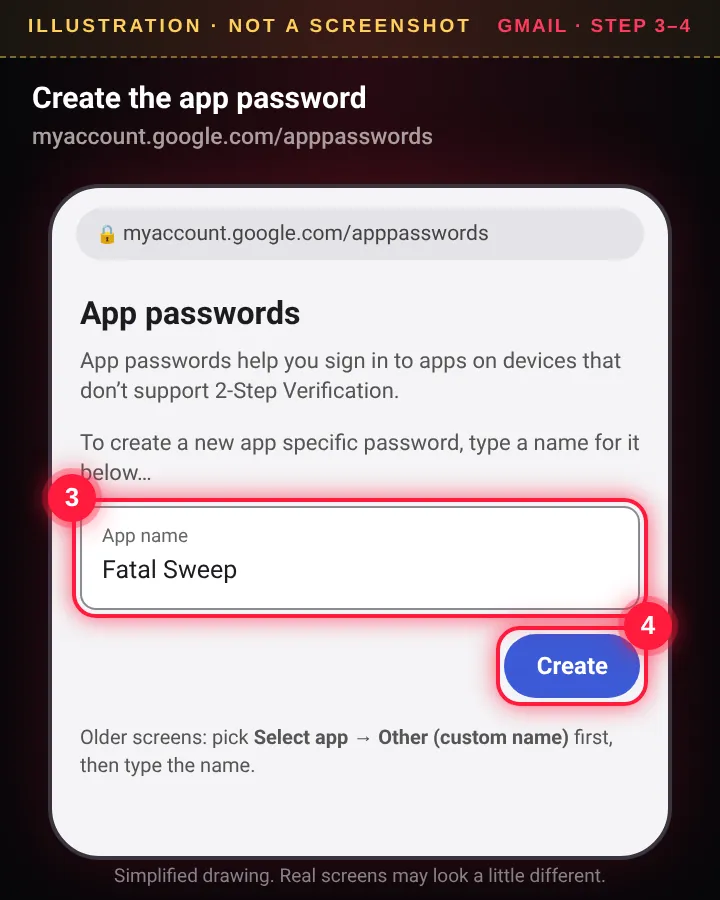
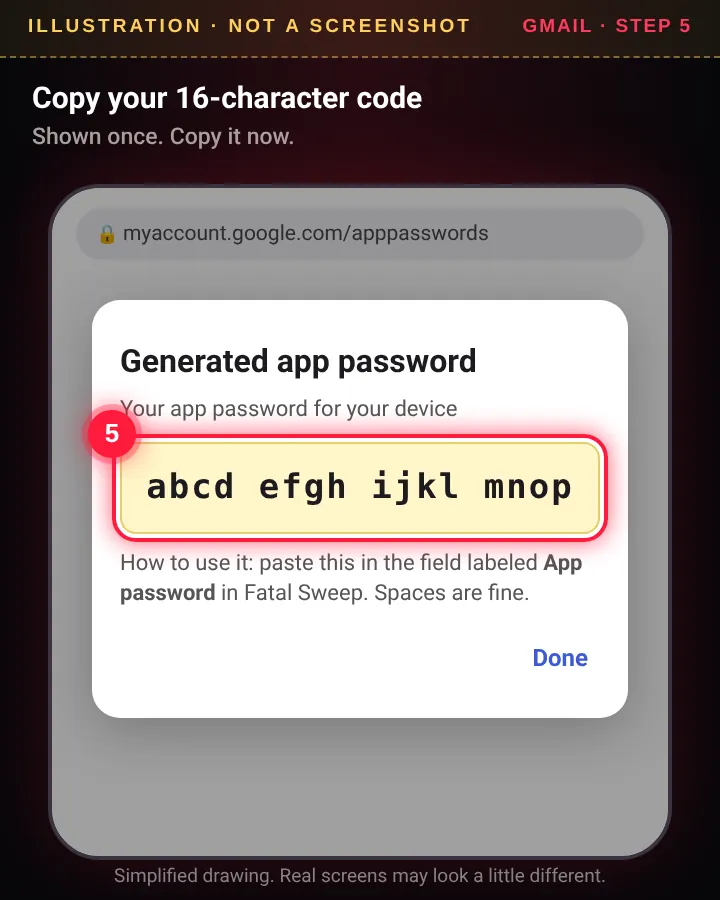
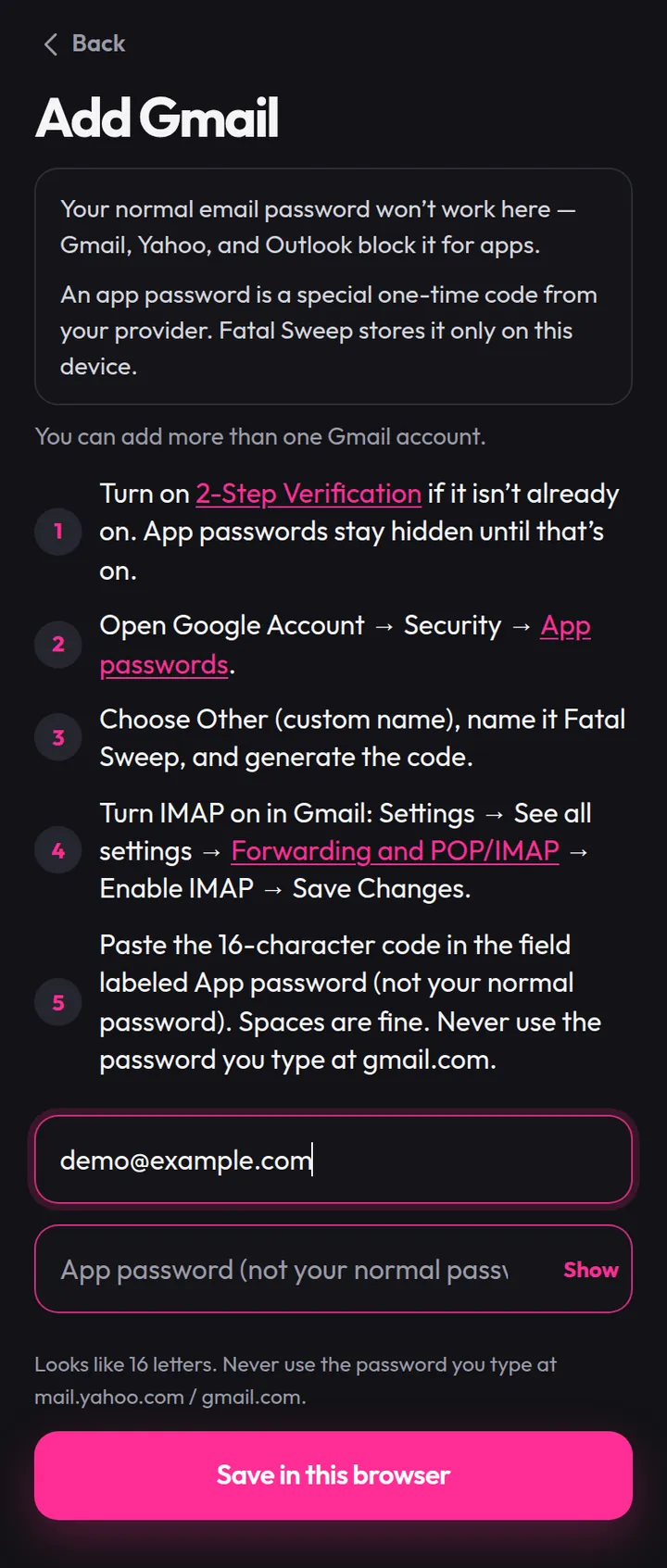
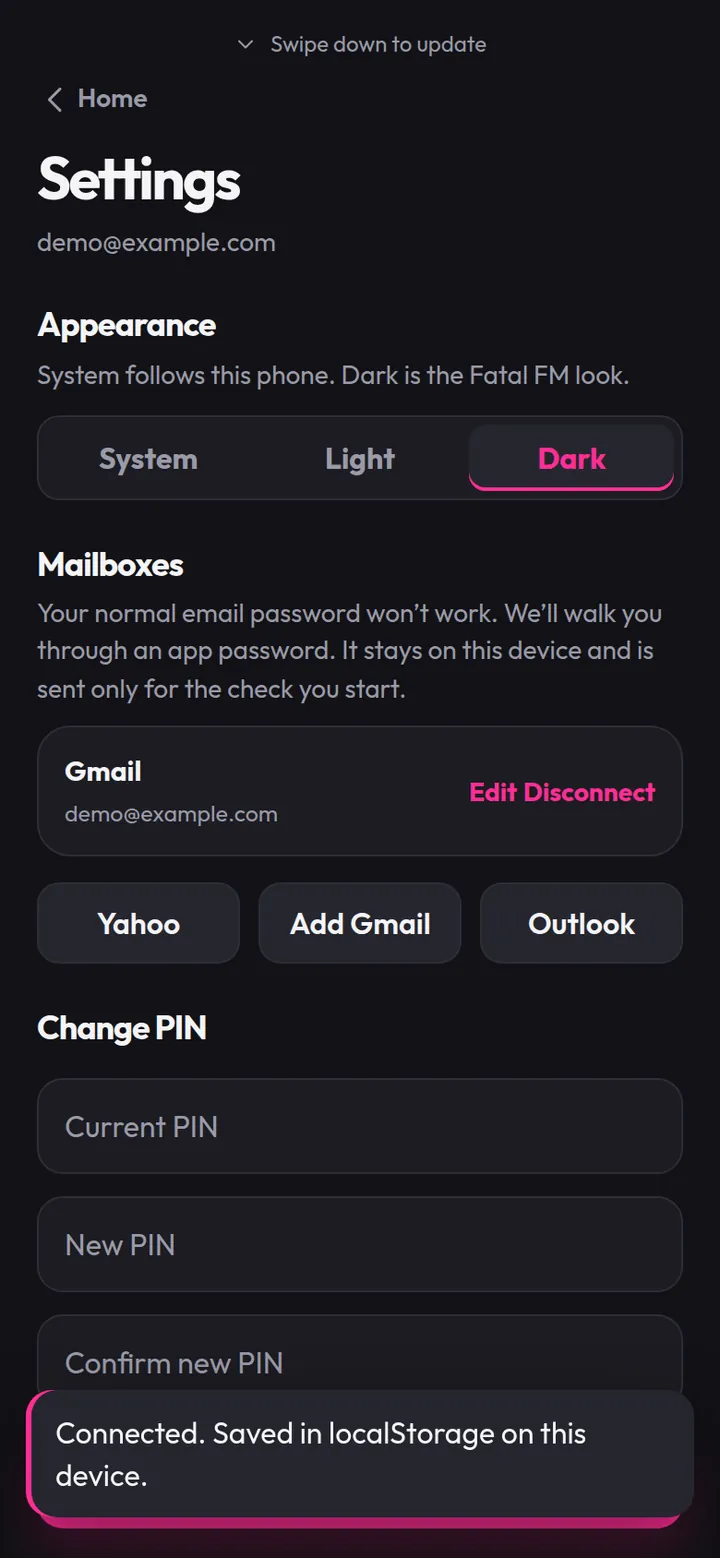
Google screens are simplified drawings, not real screenshots; yours may look a little different. Fatal Sweep screens show example data.
Yahoo Mail @yahoo.com · about 3 minutes
You'll need
- Your Yahoo sign-in. Yahoo may ask you to confirm with a code to your phone or recovery email.
- No IMAP setting to change: Yahoo allows it already.
Make the app password
- Open login.yahoo.com/account/security (Yahoo Account security) and sign in.
- Scroll to External connections and open the App passwords tab. Not Sign in with Yahoo, that's something else.
- Tap Create app password, the purple link next to "What are app passwords?". (Older screens call it Generate app password or Manage app passwords.)
- Type Fatal Sweep as the app name and tap Generate password.
- Yahoo shows a 16-letter code. Tap Copy (or press and hold → Copy), then Done. It's shown once; you can always make a new one.
- Now paste it into Fatal Sweep: tap Yahoo and paste the code in App password, not your Yahoo password.
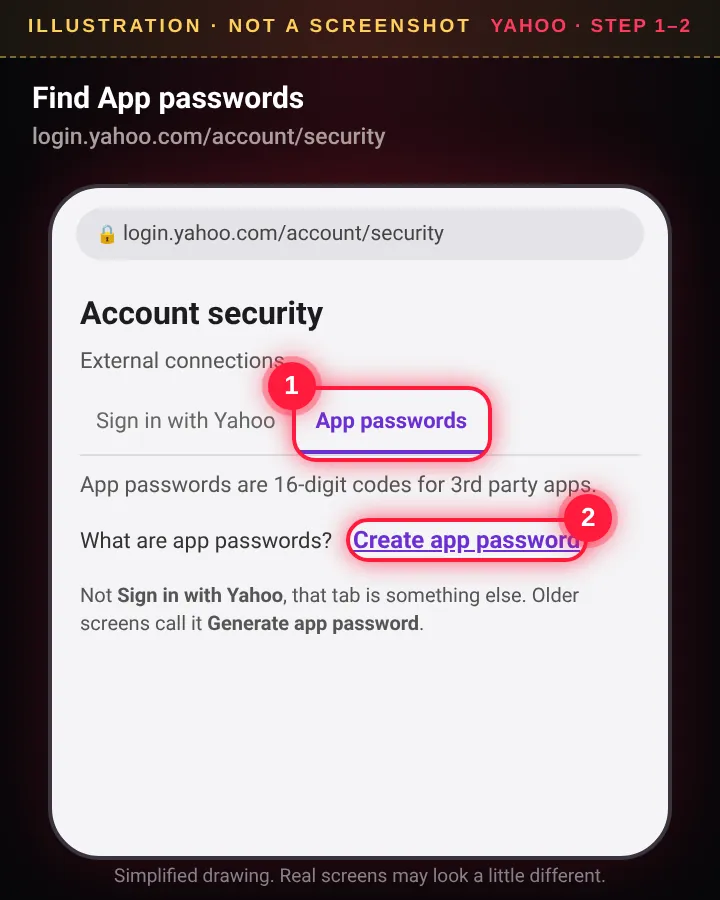
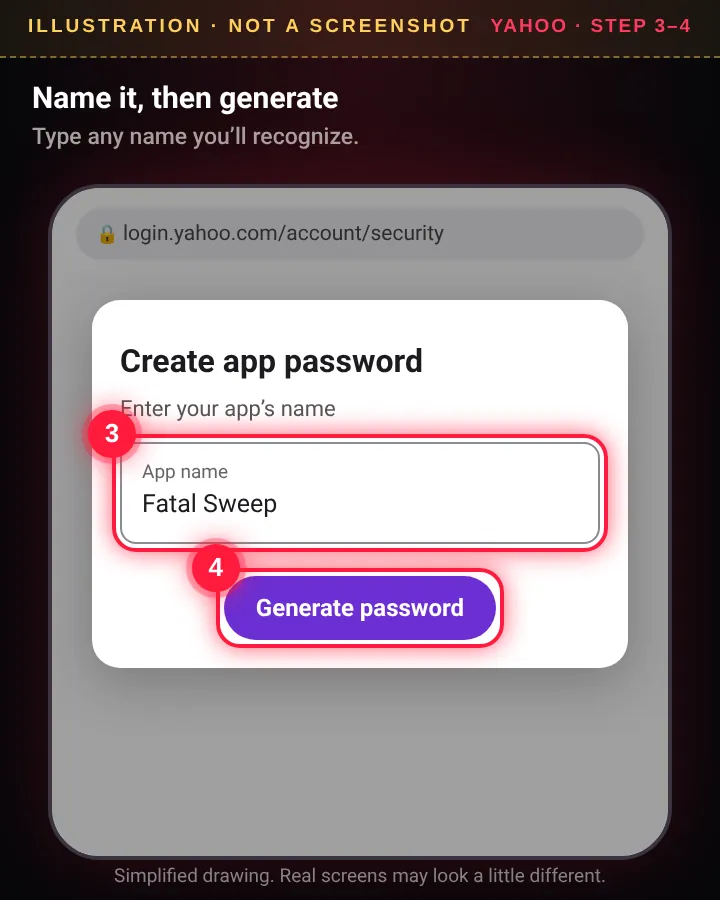
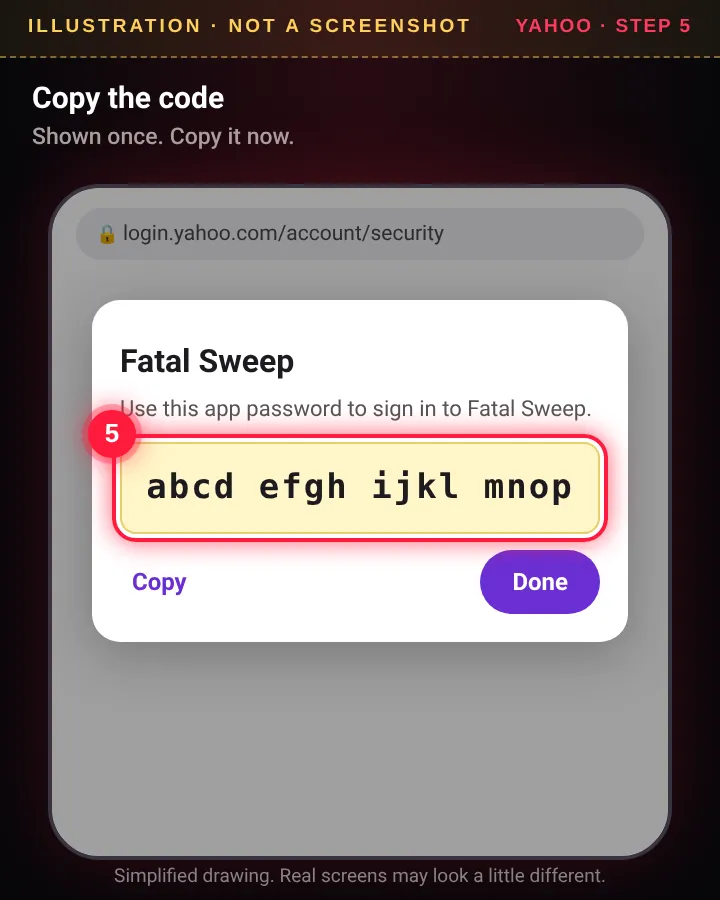
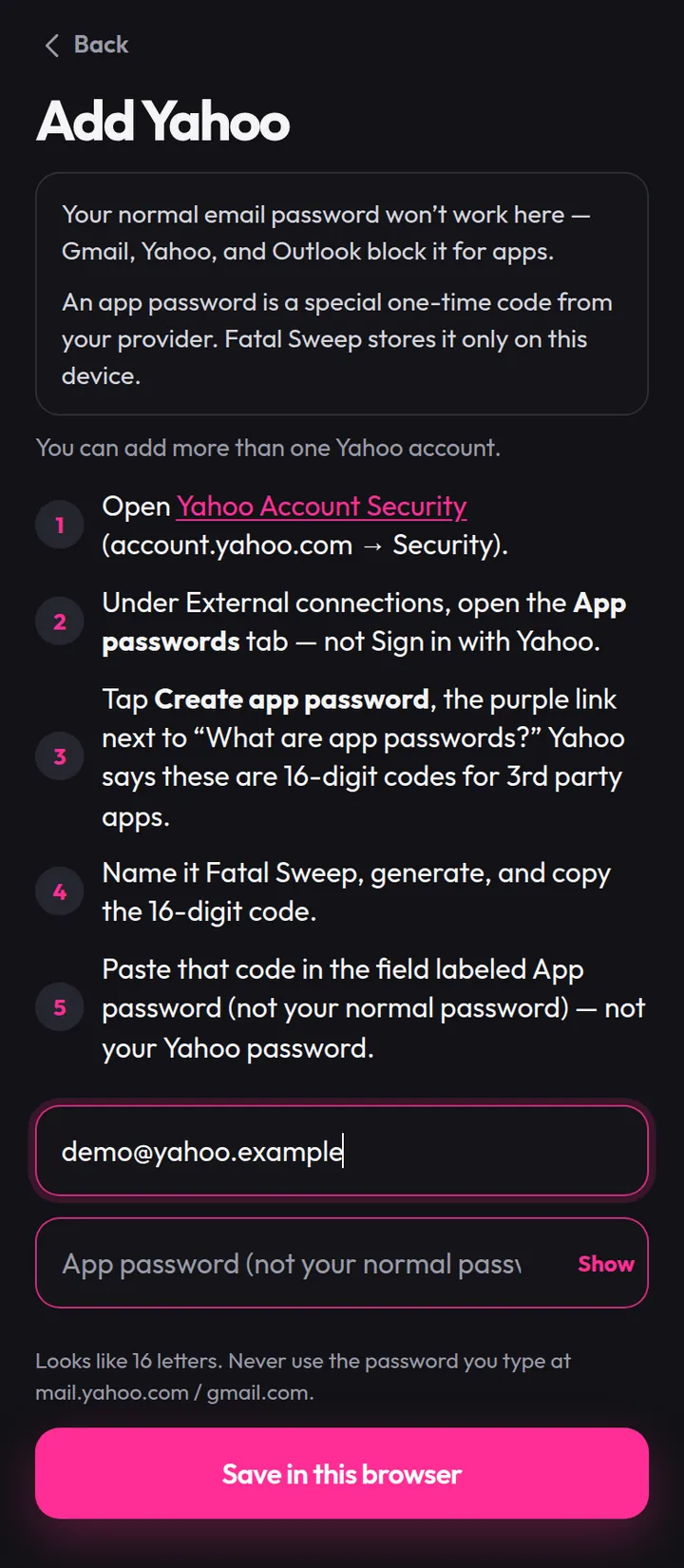
Yahoo screens are simplified drawings, not real screenshots; yours may look a little different. Fatal Sweep screens show example data.
Outlook / Hotmail @outlook.com, @hotmail.com, @live.com · may not work, read first
You'll need
- Two-step verification turned on. Microsoft only shows App passwords when it's on (step 1).
- A personal Microsoft account. Work or school (Microsoft 365) mail is controlled by your admin.
Make the app password
- Open account.live.com/proofs/manage/additional (Advanced security options) and sign in. If Two-step verification is off, turn it on and follow the prompts.
- On the same page, under App passwords, tap Create a new app password.
- Microsoft shows the code on the next screen. Copy it (press and hold → Copy), then tap Done.
- Allow IMAP, if your account has the switch: open outlook.live.com → Settings ⚙ → Mail → Forwarding and IMAP → turn on Let devices and apps use IMAP → Save.
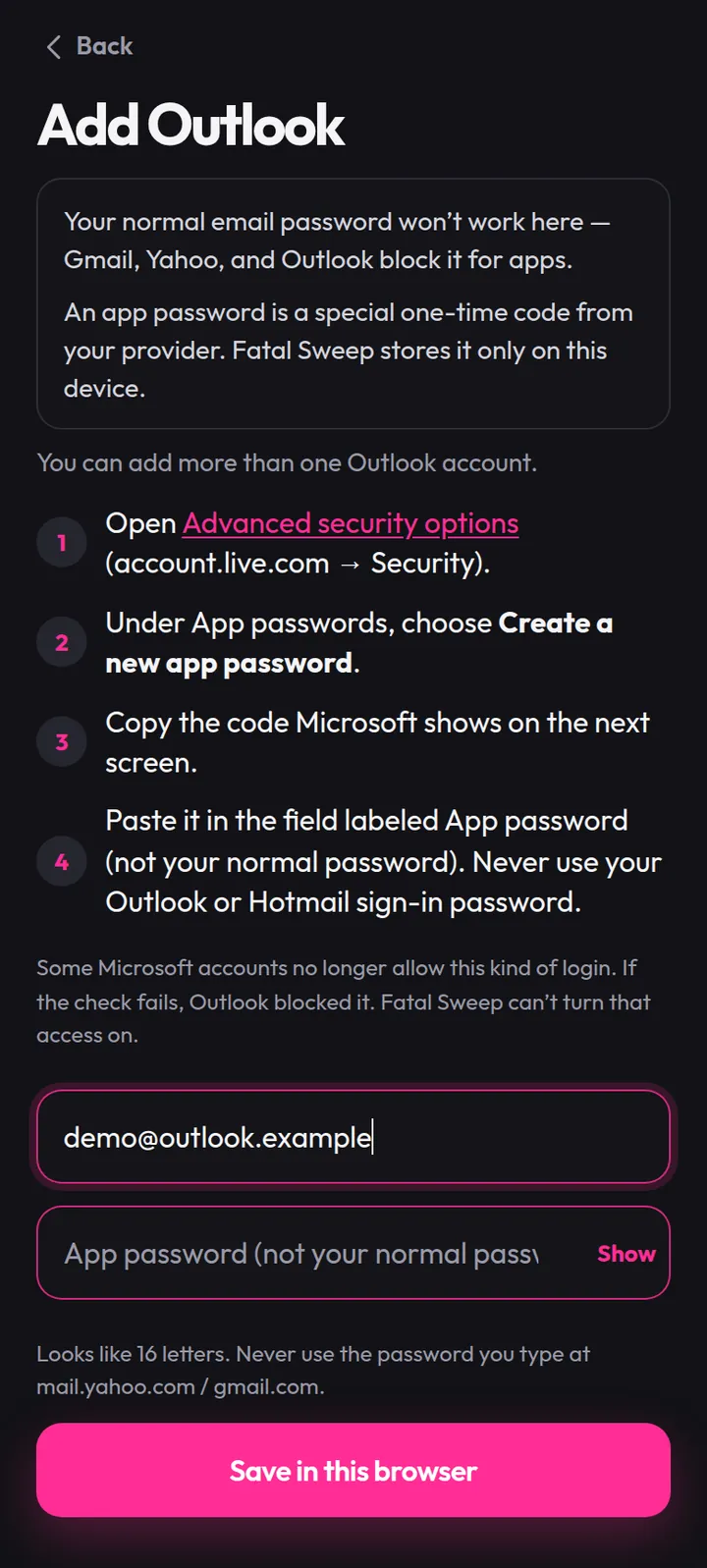
- Now paste it into Fatal Sweep: tap Outlook and paste the code in App password. Never use your Outlook or Hotmail sign-in password.
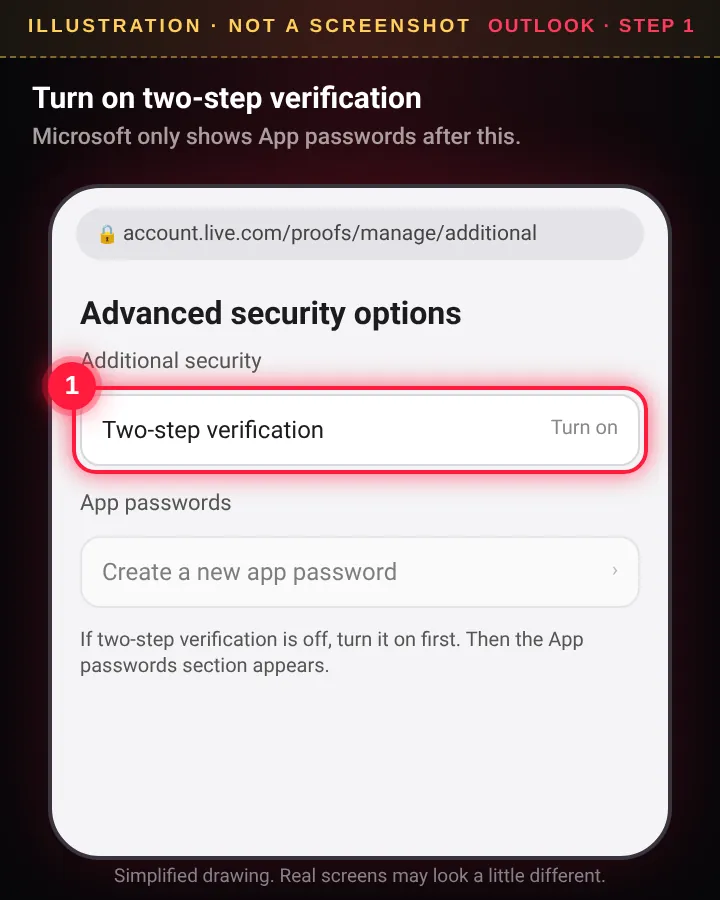
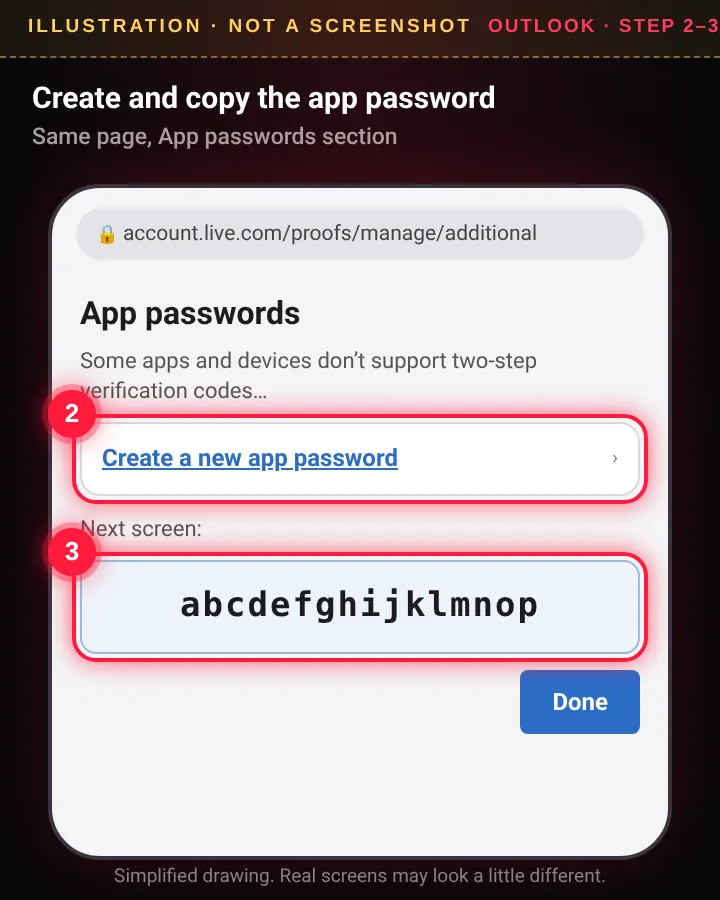
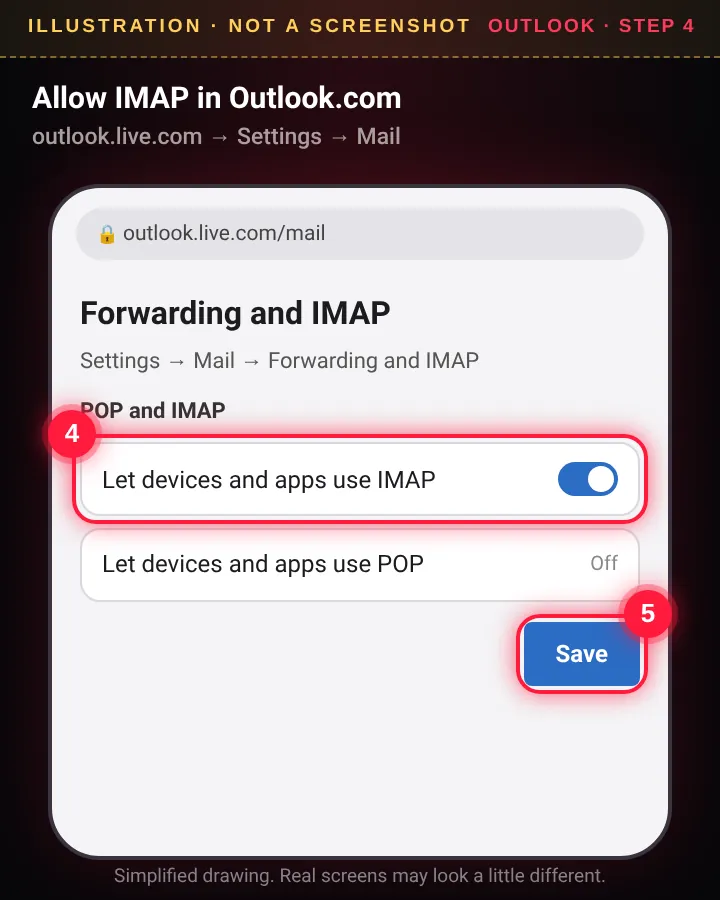
Microsoft screens are simplified drawings, not real screenshots; yours may look a little different. Fatal Sweep screens show example data.
Paste it into Fatal Sweep
- Open Fatal Sweep from your home screen and unlock it (Face ID or PIN).
- On Home, tap Connect mail. (Or tap the Settings gear → Mailboxes.)
- Tap Gmail, Yahoo or Outlook. The same steps are on screen there too.
- Type your full email address in Email.
- Press and hold the field labeled App password → Paste. Spaces are fine. Tap Show to double-check it.
- Tap Save in this browser. Fatal Sweep tests the login before it saves. When it works you'll see Connected. Saved in localStorage on this device. and your mailbox under Mailboxes.
- Go back to Home and swipe down (or tap Run now) for your first sweep. Check Review for anything it wasn't sure about.
When it fights back
I can't find "App passwords"
- 2-Step Verification (Google) or two-step verification (Microsoft) is off. Turn it on first; App passwords shows up after.
- Use the direct link in your provider's steps above. The menu can be hard to find.
- Work or school account (Google Workspace, Microsoft 365): your admin may have turned app passwords off. Only they can change it.
- Google Advanced Protection, or 2-Step Verification with security keys only: Google doesn't offer app passwords on those accounts.
- Yahoo: make sure you're on the App passwords tab under External connections, not Sign in with Yahoo.
"Wrong app password. The mail server rejected it."
- You may have used your normal email password. Use the 16-letter app password.
- Check the email address is the same account you made the app password on.
- Copy and paste rather than typing; tap Show to check it. Spaces don't matter.
- Still stuck? Delete that app password and make a fresh one. It's free and takes a minute.
"IMAP is blocked for this account"
- Gmail: IMAP is always on for personal Gmail. If your settings still show an IMAP option, choose Enable IMAP and Save Changes (Gmail step 6).
- Outlook / Hotmail: Microsoft blocks app-password sign-in on many accounts. Turn on Let devices and apps use IMAP (Outlook step 4) and try again. If it still fails, Microsoft won't allow it for your account; this version of Fatal Sweep doesn't support Microsoft's newer sign-in (OAuth).
"Network problem. Could not reach the mail checker."
Your phone lost its connection, or the network blocks it. Try again on Wi-Fi or mobile data.
"App password is missing on this device"
App passwords are saved on each phone (and each browser) separately. If you set it up somewhere else, cleared website data, or reinstalled, add the mailbox again: Settings → Mailboxes → tap the provider → paste a new app password. On iPhone, the home-screen app keeps its own storage, separate from Safari, so set it up inside the home-screen app.
Adding more than one account
Settings → Mailboxes → tap the provider again (for example Add Gmail). You can add more than one of each. Make a separate app password for each account.
Changing or removing a mailbox
Settings → Mailboxes → Edit to paste a new app password, or Disconnect to remove it from Fatal Sweep.
Revoking an app password later
- Gmail: myaccount.google.com/apppasswords → tap the trash can next to Fatal Sweep. Changing your Google password also cancels your app passwords.
- Yahoo: Account security → External connections → App passwords → remove Fatal Sweep.
- Outlook: Advanced security options → App passwords → Remove existing app passwords (Microsoft removes all of them at once).
- Then Disconnect the mailbox in Fatal Sweep (Settings → Mailboxes), or it will show a wrong-password error.
I lost the code before pasting it
No problem. Providers only show it once, so make a new one with the same steps. You can delete the old one.
No app store needed
iPhone
- Open fatalsweep.pages.dev in Safari
- Tap the Share button (square with an up arrow; don't see it? tap ••• first)
- Tap Add to Home Screen
- Tap Add
- Open Fatal Sweep from your home screen and set it up there
Android
- Open fatalsweep.pages.dev in Chrome
- Tap the three-dot menu (top-right)
- Tap Install app (or Add to Home screen)
- Tap Install (or Add)
- Open Fatal Sweep from your home screen and set it up there
First run: lock it with Face ID or a PIN
- Type your email. It names your account on this phone.
- Tap Face ID (Fatal Sweep then asks you to make a backup 6-digit PIN), or type a 6-digit PIN.
- Tap Create free account.
- Tap Connect mail and follow the setup guide.
Swipe down on Home to check mail. New version? Settings → Check for updates.
Questions from the crypt
Is it free?
Yes. No ads, no subscription, and it doesn't sell your data. There's an optional Donate button if you want to support it.
Which email works?
Gmail, Yahoo and Outlook / Hotmail. Some Microsoft accounts block app-password sign-in (see the Outlook steps). Other providers aren't supported yet.
Why do I need an app password?
Gmail, Yahoo and Outlook don't let outside apps use your normal password. An app password is a separate code just for mail apps, and you can delete it any time. Step-by-step guide.
Where is my app password kept?
On your phone only, in Fatal Sweep's storage. It's sent to the mail checker only for a check you start, then dropped. It's never stored on a server.
Does it delete my mail forever?
No. Removed mail goes to your mailbox's Trash, and the Auto-removed list has Restore to put it back in your inbox (and add the sender to Keep).
Does it run when the app is closed?
No. A web app can't run while it's closed. It sweeps when you open it (at most every 3 hours), when you swipe down on Home, or when you tap Run now.
Will it remove me from people-search sites by itself?
No. It walks you through each opt-out step by step (Spokeo, TruePeopleSearch, FastPeopleSearch, Whitepages) and tracks where you are. You send the request. With your mail connected, it spots the site's confirm email and moves you to the next step.
What does the breach check do?
A free XposedOrNot lookup of your email address in known public breaches. It never sees your password. It's a heads-up: old breaches stay listed even after you change your password.
What if I forget my PIN?
Reset it with Face ID. Without Face ID, a forgotten PIN can't be recovered: you'd erase the app's data on that phone and set it up again.
New phone?
Everything lives on the phone you set it up on, so set it up again on the new one and make new app passwords.
Is it made by Google, Yahoo or Microsoft?
No. Fatal Sweep is an independent app by Fatal, not affiliated with Google, Yahoo or Microsoft.

Sweep it clean.
Open it, add it to your home screen, and connect your mail.
Open Fatal Sweep ↗ ♥ Donate ← All apps